Tutorial
A full walkthrough of every feature, with extra detail (and real screenshots) for the two places people ask about most: the calendar & reminders, and how far the customization options actually go.
Basics
The everyday mechanics: typing, formatting, lists, and undoing a mistake.
Tap the + button on the dashboard to start a new note, or tap any existing note to open it. Tap the title to rename it, or tap anywhere in the body to start typing.
Notes save automatically as you type, so there's no separate save button. Web addresses become tappable links automatically as you type or paste them; even a bare domain like example.com works, no http:// or www. required.
Tap into any line of text to bring up the sticky formatting toolbar above it. It stays reachable near the top of the screen even on a long note.
Bold, italic, and underline apply to the whole line at once; tap the same button again to remove it. The "Aa" button changes text size, and the calendar button inserts today's date (or lets you pick another one) right where your cursor was.
The T • # ▢ buttons switch a line between plain text, a bullet, a numbered item, or a checkbox.
Press Enter on an empty list line to indent it one level; press it again to outdent, and a third time to drop back to plain text. Long-press a line's marker to drag and reorder it.
Tap the ☑ button in a note's formatting toolbar to turn on line selection. Press and hold any line, then drag up or down to highlight a range.
Selections don't have to be one continuous run: press and hold another line to add just that line to a growing selection. The toolbar then swaps to bulk actions, letting you switch every selected line's type, toggle bold/italic/underline, or delete them all at once.
The undo button (appears once you've made a change) reverts the most recent edit to a note: text, title, category, background, or an inserted date.
It only covers the current editing session, meant for quickly reverting a mistake rather than stepping back through every change ever made.
The calendar button in a note's formatting toolbar opens a built-in date picker, so there's no fighting with your device's native one.
Browse up to 5 years in either direction and tap a day to insert that date wherever your cursor was.
Organizing
Categories, folders, templates, search, and everything else that keeps a growing pile of notes navigable.
Tap "Uncategorized" (or a note's existing categories) near the top of a note to assign one or more categories, or create a new one on the spot with its own color.
Category chips at the top of the dashboard filter to just that category. Long-press a second chip to add it to the filter and see notes tagged with every picked category at once. Manage, rename, recolor, reorder, or delete categories any time from Settings.
Tap the 📁 icon on the dashboard to switch the category chips into a grid of folder tiles instead, each showing how many notes it holds. Your choice of chips or folders is remembered next time you open the app.
Want one category to stand out? Tap the small folder icon next to its color dot in Settings to give just that category its own icon, independent of the app-wide theme.
Save any note as a reusable template from its editor menu (📑 button), then start new notes from it via the "New note" screen.
Templates carry over their body text, background, and categories, so you don't have to rebuild a note from scratch every time. Manage every note and table template in one place from Settings → Templates.
The search icon filters notes by title or body text as you type, and jumps straight to where it matched inside the note with every occurrence highlighted.
The sort icon reorders the dashboard by last edited, date created, title, or category. Pin any note (📌) to keep it at the top regardless of sort order.
Tap the select icon on the dashboard, then tap notes to select several at once. From there, move them all to trash, pin/unpin them together, or add or remove a category across every selected note in one step.
Deleting a note moves it to Trash instead of removing it right away. Open Trash from the dashboard to restore a note or delete it permanently; anything left for 30 days is removed automatically.
Notes on the dashboard (when sorted "Manually"), header icons, categories in Settings, and list lines in a note can all be long-pressed and dragged to reorder. Hold for about half a second until it "picks up," then drag it where you want.
Tables
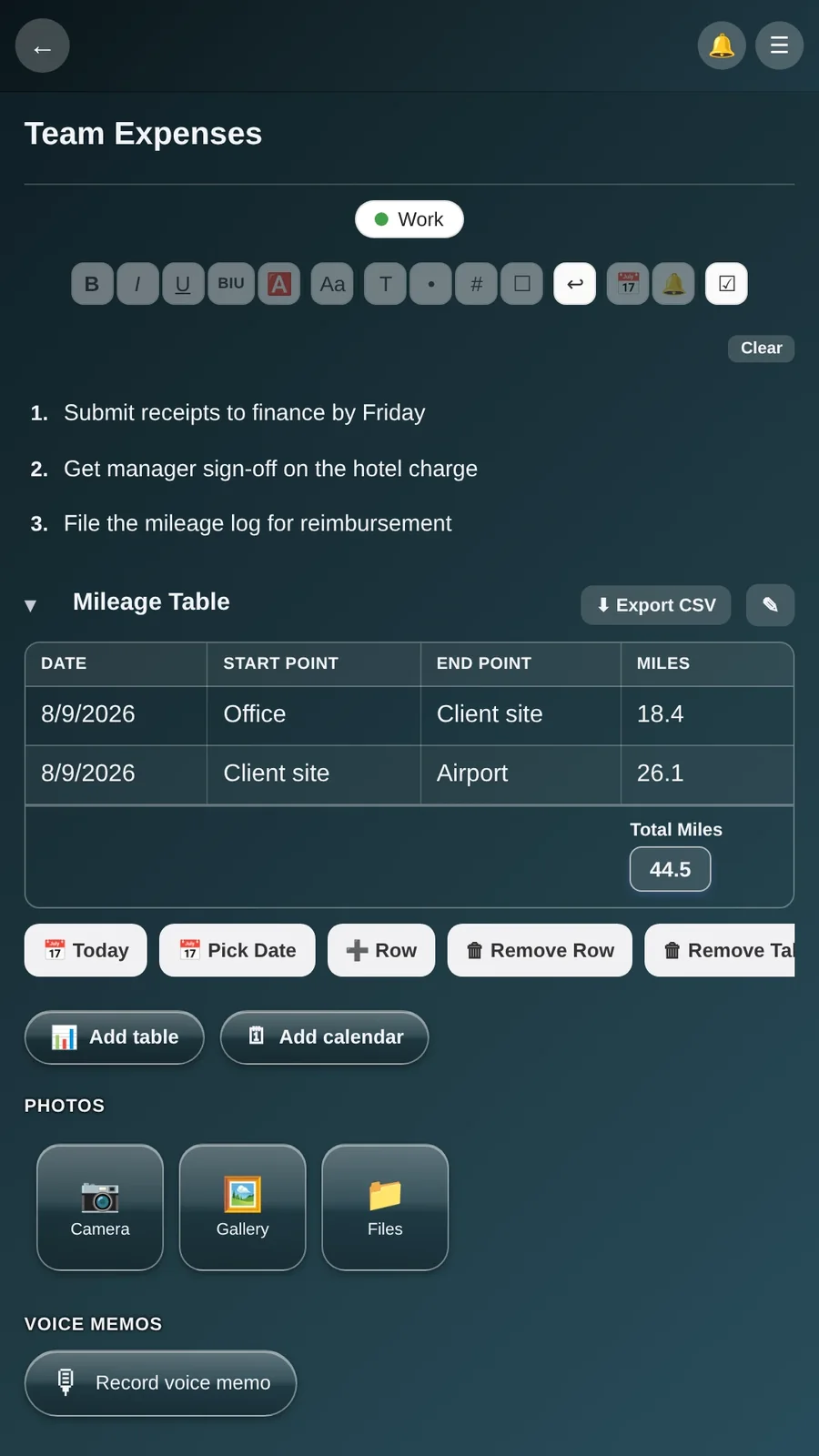
Any note can hold as many tables as you like. Tap "+ Add table" below the note body, then either start from the Mileage preset or build your own columns from scratch.
Every column has a type: Text, Number, or Date. Number columns keep a running total at the bottom, and Date columns work with that table's "Today" and "Pick Date" buttons.
Pressing Enter moves to the next cell, and Enter in the very last cell adds a fresh row automatically. Tap a table's ✎ to add, rename, retype, remove, or drag-reorder its columns, and save the whole layout as a reusable template right from there. Export any table to CSV from the button next to its name.
Photos
Add photos to a note with the Camera, Gallery, or Files buttons at the bottom of its editor. The first photo shows as a thumbnail on the note's dashboard card, with a badge for how many it holds.
Customization
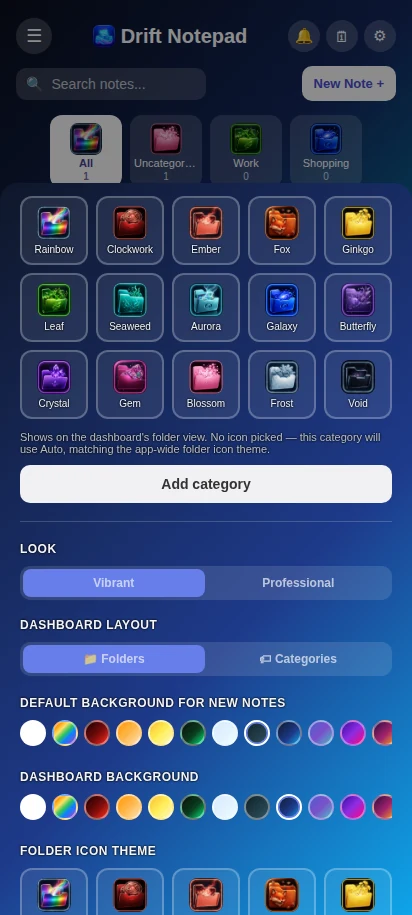
Two independent looks, Vibrant and Professional, each with their own full set of backgrounds, plus folder icon themes, dashboard layout, and note-level locking, all mixable per note.
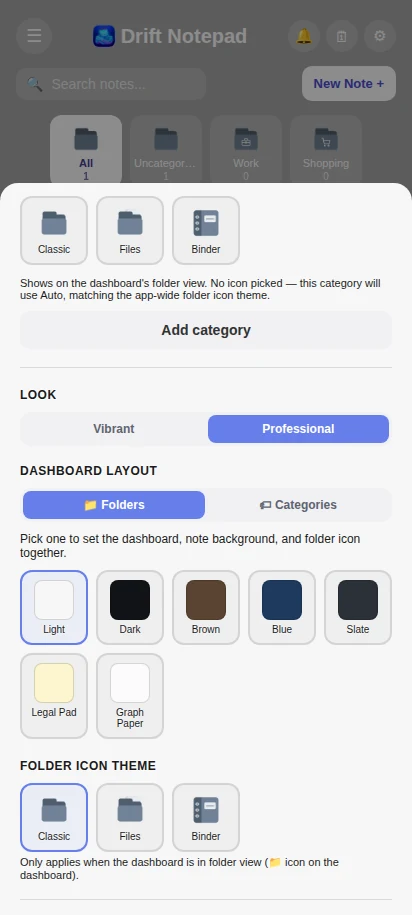
Vibrant leans into color: animated gradient themes, a lively dashboard, folder icons with personality. Professional strips that back to a flat, muted palette. Light, Dark, and Brown are free; Blue, Slate, Legal Pad, and Graph Paper are part of the paid unlock, with the last two adding ruled lines or a grid to the note itself.
Switch the whole app between them any time from Settings under "Look"; it's a top-level choice, not per-note. Independently, Dashboard layout switches the category chips into a grid of folder tiles (or back), and every note can still have its own individual background regardless of which mode the app is in overall.
Look, dashboard layout, and background swatches, all in Settings
Every note can have its own background too. Tap the 🎨 button in its editor and choose from solid colors or the animated gradient themes, including Rainbow, which automatically switches to white text so it stays readable over every color in the gradient.
Prefer to leave it alone? Set a default background for new notes and a separate one for the dashboard itself, both in Settings, so every fresh note starts exactly how you like without picking each time.
Professional mode's flat, muted preset palette
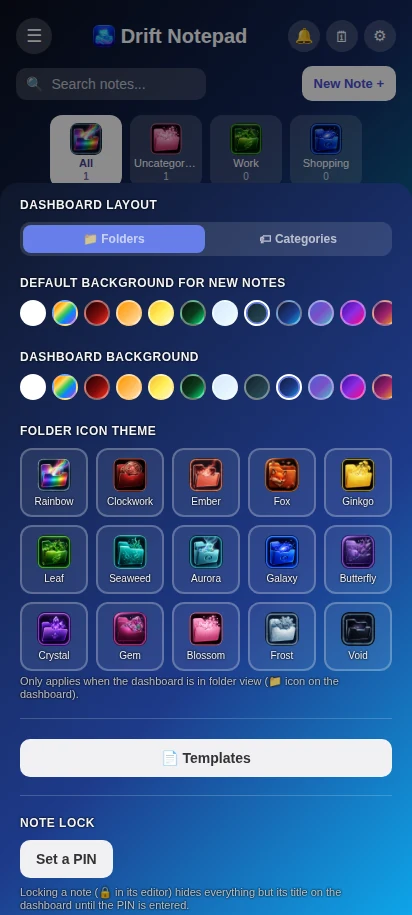
Pick from 15 different folder icon styles under "Folder icon theme" in Settings; it applies app-wide whenever the dashboard is in folder view. Want one category to stand out from the rest? Give just that category its own icon from its row in Settings, independent of the app-wide theme.
Set a PIN in Settings, then lock any individual note from its editor (🔒). A locked note shows only its title on the dashboard until the PIN is entered. Once unlocked, it stays that way for the rest of your session. Change or remove the PIN any time from the same screen.
All 15 folder icon styles, picked app-wide
Calendar & Reminders
A note can hold its own built-in calendar for anything tied to a date: appointments, medication, bills, anything. Every reminder in the app, calendar or not, funnels into one place you can check at a glance.
Tap "+ Add calendar" below a note's body, then tap any day to add an entry: pick a type (Appointment, Medication, Other, or create your own with a custom name, icon, and color), give it a label, and optionally set one or more times.
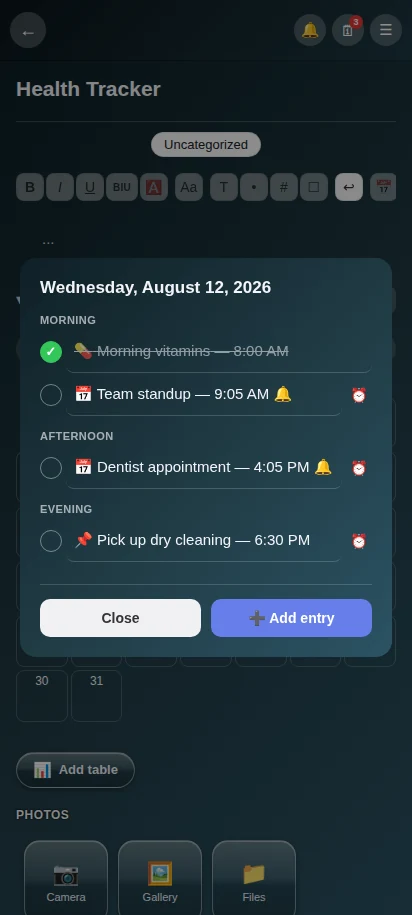
Once a day has more than one entry, they group into Morning, Afternoon, and Evening automatically, so a busy day reads as organized blocks instead of one long list. Tap the circle next to an entry to mark it done. An entry with a time that passes unmarked gets flagged "⚠ Missed" instead, and its day gets a red badge on the calendar grid so nothing slips by unnoticed.
Need something tracked across several days? The "Repeat" choice offers a date range (a course of medication) or weekly for a number of weeks (a standing appointment). Either way, editing or completing one occurrence only affects that single day, with a one-tap option to remove the entire series if plans change.
A real day view: one entry done, two with live reminders attached
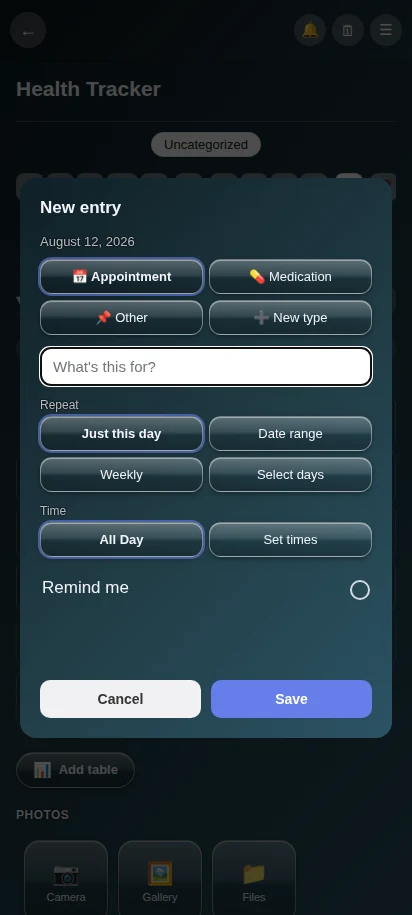
Adding an entry gives you the full picture in one sheet: pick a type, name it, choose how it repeats, and set one or more times, with an optional reminder that turns into a real device notification, the same as any other reminder.
A home-screen widget showing today's agenda is available too, entirely optional. Long-press an empty spot on your home screen, choose Widgets, and find Drift Notepad. It only shows what's tracked; it can't mark anything done on its own.
Adding a new entry: type, repeat, and time, all in one sheet
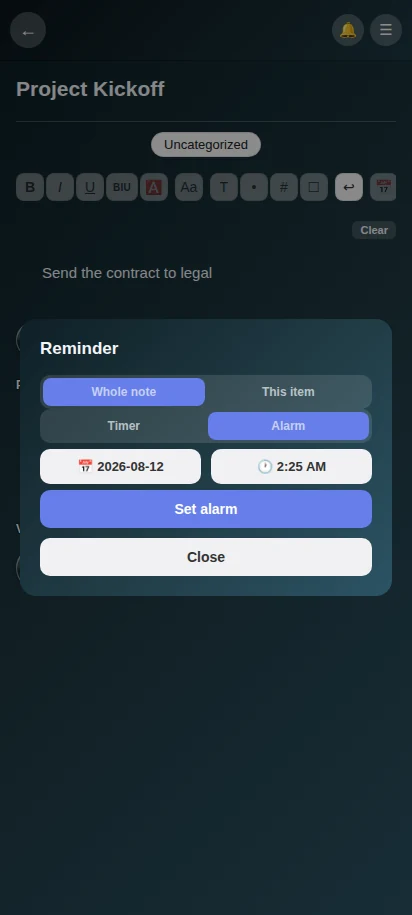
Tap the 🔔 button in any note's editor to set a reminder: either a Timer (a preset, or a custom minutes + seconds duration from now) or an Alarm (a specific date and time).
Scope it to the "Whole note" or to "This item" (whichever line or checklist item you were last typing in). A note-level reminder shows a live countdown right in the editor header; a line-level one shows as a small badge attached to that item.
On Android, a fired reminder's notification itself has Snooze, Mark Done, and Acknowledge buttons, so you can handle it without ever opening the app. Acknowledge just stops it from ringing again without marking anything done, for something you've seen and are handling but haven't finished yet.
Whole note or a single item, timer or a specific date/time, all in one sheet
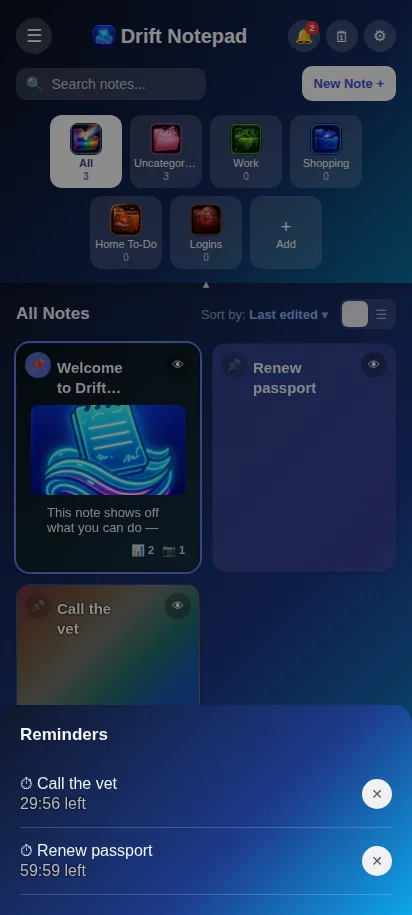
The dashboard has its own 🔔 icon that lists every whole-note and per-item reminder running across all your notes in one place, soonest first, with a live countdown and a tap to jump straight there.
Calendar entry reminders don't clutter this list; they live in the 🗓 calendar icon right next to it instead, which shows everything tracked for today across every note in the app.
Every active reminder, across every note, in one list
Backup & Security
Nothing here requires an account; backups are just files you control.
Export saves every note and category to a single file you can keep as a backup or move to another device. Import reads one of those files back in, adding its notes and categories alongside whatever you already have. Both live in Settings, under Backup.
Voice memos, reminders, tables, the calendar tracker, note lock, and most background themes and colors are part of a one-time paid unlock: pay once, keep them forever. No subscription, no account beyond your existing Google account.
Reinstalled the app or switched devices? Tap "Restore purchase" in Settings to recover it for free. No need to buy it again as long as you're signed into the same Google account.